Nothing to crop or stitch
The layout is already set: author on top, text centered, images in proportion, metadata at the bottom. No aligning, no padding, no font sizes to guess.
Use case · Share images
You see something worth passing on, and a screenshot means cropping it yourself while the page's buttons and recommendation rails come along. Shunshou lays the page out as a clean card instead — author, text, images and date each in their place, with a QR code in the corner that leads back to the source. One click to render, copy and post.
Zero setup · Works offline · No account and no API needed
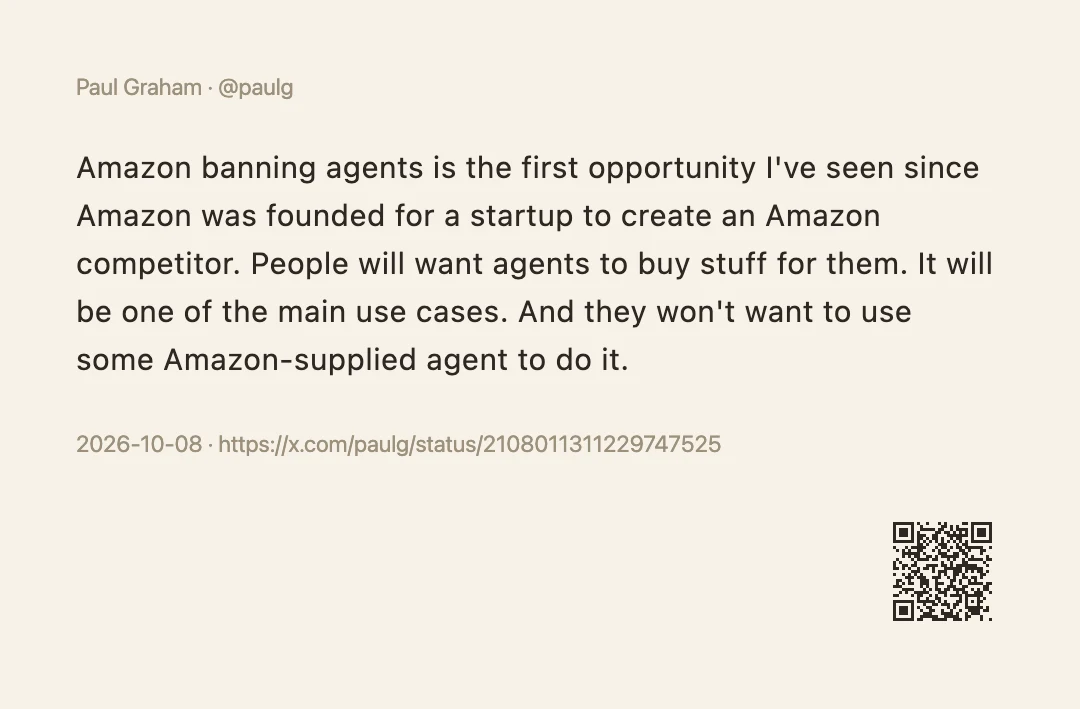
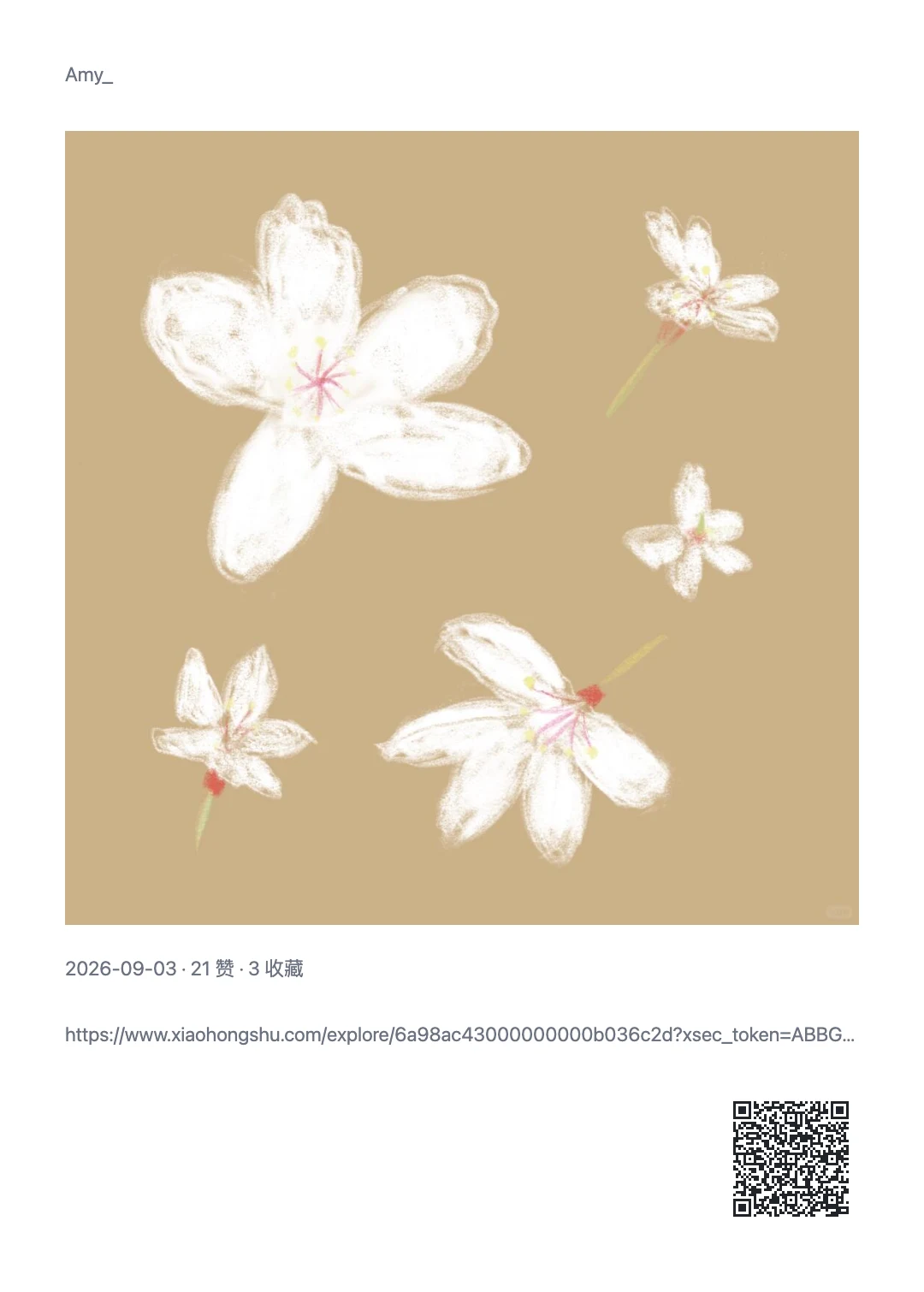
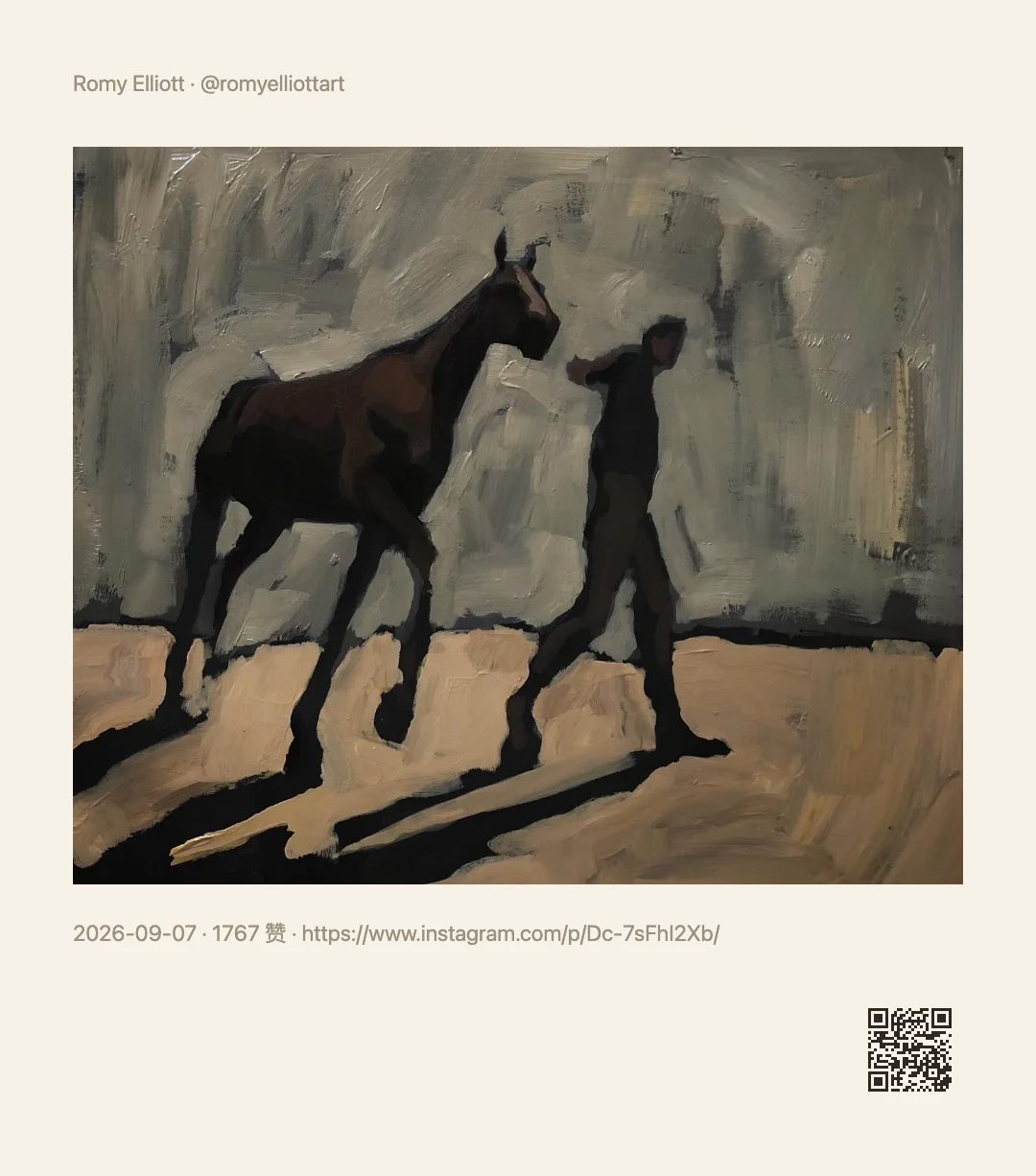
Why not just screenshot
Screenshots are fast, but what you post is a piece of someone's page: the nav bar, the like button and the rail next to it are all in there, and you still have to crop. After cropping, the sizes don't match, so each platform squashes it again.
A share image re-lays out the content: who wrote it, what they said, what pictures came with it, when it was posted — at a fixed size with even margins, so what you post is a finished piece.
The three above aren't three features — they're one share-image capability reading each site's own fields. So a new site needs no waiting for support: give it a few fields and it renders.
The layout is already set: author on top, text centered, images in proportion, metadata at the bottom. No aligning, no padding, no font sizes to guess.
Carousel images on Xiaohongshu notes and Instagram posts are completed automatically (no opening each one) and laid out as a photo wall; tweets bring author, date, text and images.
With pagination on, text past one card's limit is split into several images, continuation pages carrying the title and page number — a long article still goes out whole.
A QR code in the corner opens the original page; it can also point at a download link for the app itself. The code is generated locally — no network, nothing uploaded.
Unlike saving to a note app, share images work as soon as you install: no account, no API, no network dependency.
The image stays in the result dialog for preview; copy or download when you're happy. It never dumps files onto your disk, and never posts anything for you.
What comes out
All of these are real output, unedited. The same action reads each site's own fields, so the layout stays consistent while the content follows the site.
The render is the workbench
The dialog after rendering is the preview: open the full-size image if it's hard to read, and expand "Adjust" to change how it looks. Changes apply to this run; when you're happy, "Save to action" makes them the default.
Paper / Ink / Brand / Plain white — from warm paper to pure white, with light and dark palettes that follow your system.
Tall (auto height) / 4:5 / 3:4 / 1:1 — for a timeline, a note, or a cover; the tall size fits as much of the text as it can.
Fonts come only from what's installed on your machine (nothing is downloaded), and any CSS font-family works too. With a custom background, text and QR code are given automatic contrast.
A card is a list of blocks, each a template that can reference any variable: drop the date, or drag the rating to the top.
"Share full text" lets you edit this run's body in place — affecting only this run, not your config; save it back to the action once you're happy.
No text by default; fill in the watermark to sign your work. The QR code has three settings: current page / brand homepage / off.
Works with annotations
It doesn't have to be the whole page. See a sentence worth posting, select it — "Share quote" on the capsule renders a card of just that passage. Or mark things as you read and deal with them at the end.
Select a passage and click "Share quote": the card is that passage plus its source, which is exactly what you want for a line from an article or a book.
Select text and click Highlight; the mark stays on the page, surviving a reload and without changing the site's own structure.
Click it again to copy or remove it (a removal can be undone); all highlights on the page can be copied as text or saved to your notes in one go.
The "AI summary card" action has your own model boil the passage or page down to key points, then lays it out on the same card — same design, different content.
After rendering you can carry on: copy the image into a chat, save the file, or add a "Post to X" step that opens the official share box prefilled — you always confirm before anything is published.
More than social
Share images are a general capability: any page whose fields you can read can be rendered.
"Share full text" lays the page's text and images out in reading order, splitting into several images when long instead of cutting — far cleaner than a scrolling capture, and no floating ads get caught in it.
Douban book, movie and game pages yield 17 / 20 / 11 fields, so a book card or a film card can carry rating, cover and director — nicer than a screenshot.
Copy owner/repo, or render the repository's details as a card — handy for recommending a project in a group chat.
Video details and comments (nested replies included) can all be read; a share card works better in a group chat than a bare link.
The rendered image can be saved straight to disk, with a configurable filename template such as Shunshou/{{date:YYYY-MM-DD}}/{{title}}; same-name files are numbered rather than overwritten.
X / Weibo / Bluesky / Telegram / Mastodon / Reddit — each opens its official share box prefilled, and you confirm in the editor before it goes out.
FAQ
A screenshot captures the screen, including navigation, buttons and recommendation rails, and you still have to crop it. A share image keeps only the content — author, text, images, date — re-laid out as a card at a fixed size with even margins, so it doesn't get squashed again when you post it.
It's also not a bitmap of a screen: change the theme or size and it re-renders, instead of needing another screenshot.
Yes. Carousel images are completed automatically (no opening each one) and laid out as a photo wall; tweets bring their author, date, text and images.
Images come from what the page has already loaded, so it never bypasses a login or reaches for private content.
No. With pagination turned on, text beyond one card is split into several images, with continuation pages carrying the title and page number.
With pagination off, the tall (auto-height) card already fits a very long article (on the order of 7,000 characters); only past that is it truncated with an ellipsis.
Yes. The finished image stays in the result dialog where one click copies it, ready to paste into a chat or a document; you can also download the file or save it locally.
Turn the QR code off if you don't want it, or point it at a download link for the app. And "copy" means copy — it won't quietly leave files on your disk.
No. Share images need zero configuration and depend on no account, connection or API: install and it works, with no network needed either — the QR code is generated locally and the images are the ones the page already loaded.
Yes. Watermark text, background color and font are all editable; four themes (paper / ink / brand / plain white) and four sizes (tall / 4:5 / 3:4 / 1:1) can be picked per piece, and your choice can be saved back into the action as the default.
It's free, with no ads and no features locked behind payment, and there's no account to create. Config stays in your browser.
Install
The store versions update themselves; the userscript suits phones or anyone who'd rather not install an extension.
The default on desktop, and it updates itself.
Same engine as Chrome, same features.
Install a script manager first (Tampermonkey / Violentmonkey; Firefox on Android, Safari + Userscripts on iOS), then the script.
To load the zip yourself (or if the stores aren't an option): download shunshou-extension-*.zip from
Releases,
unzip it, then open chrome://extensions, turn on Developer mode and choose "Load unpacked".
The full walkthrough is on the home page's install section.

Install it and go — nothing to configure.
Or download the zip, or see every install option.