Copy, switch, paste, clean up
Select the article, copy, switch to Obsidian, find the folder, create a note, paste, then strip the page's own styling and leftover navigation. By the end of a long read you no longer feel like reading it.
Use case · Obsidian
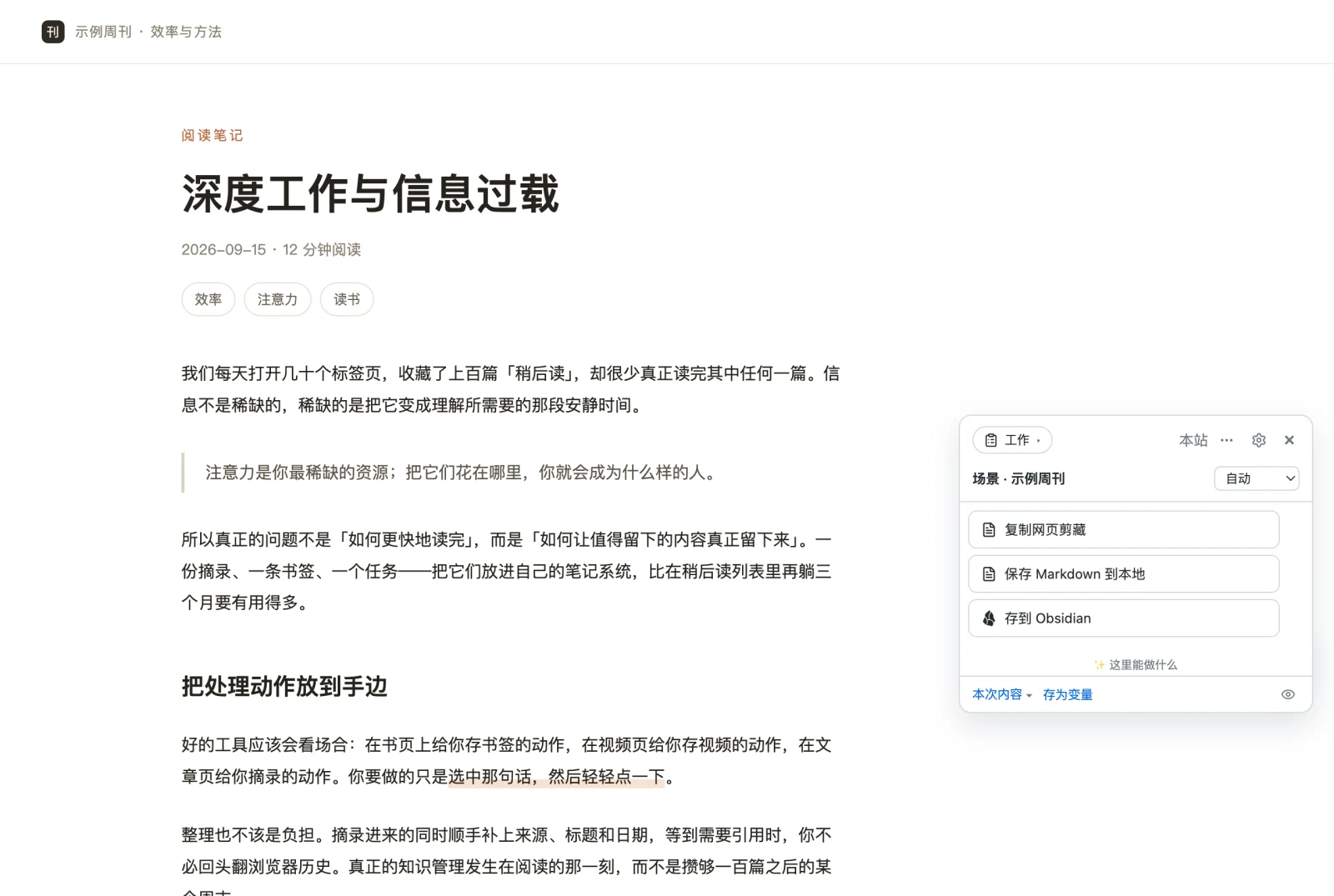
Shunshou is a browser extension (and a userscript). Find an article worth keeping, click
Save to Obsidian, and the text is written into your vault as Markdown through Obsidian's own
obsidian:// deep link — no server involved. Vault paths take subfolders and dates,
and by default nothing pops open to interrupt you.
No server · No Obsidian plugin · fill in your vault name once
Why it's a chore
Obsidian itself is a pleasure. The painful part has always been the road leading into it.
Select the article, copy, switch to Obsidian, find the folder, create a note, paste, then strip the page's own styling and leftover navigation. By the end of a long read you no longer feel like reading it.
If the note is to be searchable by source, date and author, the YAML has to be written by hand — title, link, capture time, every single time, with format mistakes to match.
This one goes in "Clippings/2026-10", that one in "Read later" — and months later you can't find either. Folder-by-date means creating folders yourself.
You want to keep a good sentence: switch window, find the note, paste — and by the time you're back you've lost your place, or you just skip it.
When article detection misses, the nav bar, the recommendation rail and "related reading" all come along; comments drag their avatars and like buttons in, and you clean it all up again in the note.
With a dozen articles queued up, it's open, copy, paste, one at a time — while trying to remember which ones you already did.
Setup
No Obsidian plugin to install and no API to fill in. Shunshou uses Obsidian's own
obsidian:// deep link — the same protocol the official Web Clipper uses — so Obsidian
installed locally is all it takes.
Set it in the action's parameters (leave it empty to use the current vault). No API token to hunt for, no switch to flip.
The default is Shunshou/{{date:YYYY-MM-DD}}/{{title}} — that is, "Shunshou/2026-10-11/Article Title". Change it to whatever template you like.
Click "Save to Obsidian" on an article page. By default nothing pops open; turn off "silent write" if you want to see the note.
The first click shows the browser's "Open Obsidian?" confirmation — tick "always allow" and it stops asking. That's the browser's protocol handshake, not Shunshou requesting a permission.
In the Studio
The action isn't a hard-coded button: its content template, vault path and same-name behaviour are all edited in the Studio, with one-step undo if you get it wrong.
The default is a web clip ({{page.markdown}} plus a source link); you can switch to the article text or a selection, or write your own template — add frontmatter right there if you want it.
{{date:YYYY-MM-DD}}, {{title}} and {{hostname}} all work; for example Clippings/{{date:YYYY}}/{{hostname}}/{{title}} sorts itself by year and site.
Create (or open the existing one) / append to the end / overwrite — for a second pass on the same article, appending beats another copy.
On by default: nothing pops open and whatever you were doing isn't interrupted. Turn it off and Obsidian will open the note you just wrote.
"Save to Obsidian" sits alongside the other actions for this site in the same panel — so you don't need a second extension to save a note, and there's no menu to remember.
No Obsidian?
The deep link needs Obsidian installed. Without it (or if you'd rather not), another action writes the
article out as a .md file — the path template takes the same variables and subfolders, so
pointing your downloads folder at your vault gives the same result.
One difference: the deep link has Obsidian write the file directly and leaves no copy in Downloads, whereas the file route downloads first and then you (or the system) file it.
The default is Shunshou/{{date:YYYY-MM-DD}}/{{title}}.md, and any folder structure works; illegal characters in the filename are cleaned automatically.
By default it auto-numbers rather than overwriting; with the "manage downloads" permission you can choose to overwrite. Files go only into your own downloads folder.
Markdown / plain text / inferred from the artifact's extension — and image artifacts such as share cards can be saved locally too.
Use "then do" to make two things one click: save to Obsidian, then copy "《Title》 link" to the clipboard.
Versus the official Web Clipper
Obsidian's official Web Clipper is a dedicated "web page → Obsidian" tool, and a good one; its templates and triggers live in its own settings. Shunshou is a site-aware action deck — "save to Obsidian" is one of the actions it offers on this site.
The two don't conflict, and you can run both.
| Concern | Obsidian's official Web Clipper | Shunshou |
|---|---|---|
| What it is | A dedicated web-clipping tool | A site-aware action deck: clipping is one group of actions among many for this site |
| How it writes | The obsidian:// deep link |
The same deep link (same protocol; fill in the vault name once) |
| What else is in the panel | Clipping only | Save to Orca / SiYuan, share images, selection translation, page operations, element screenshots… |
| When the article is wrong | Follows its own article detection | Pick the container on the page and save it as a rule; comments go through a list primitive per item |
| Auto-run | — | Run on matching pages (off by default, per action, with an optional confirmation) |
| Multiple destinations | Obsidian | Obsidian / local Markdown / Orca / SiYuan, and an action chain can write to several at once |
Common patterns
Set a kind of page to save on open — your own blog's admin, a column you follow. Browse and it's filed, no click at all. Off by default, enabled per action, and it can ask first.
It doesn't have to be the whole page. Select a passage and the capsule's action appends that sentence to today's note — read it, keep it, never leave the page.
Select text and click Highlight; the mark stays on the page (surviving a reload, without changing the site's structure). When you're done reading, save every highlight into your vault in one go.
Click "Add to staged" on each passage you like, then write the whole batch into the vault at once from the staged area at the top of the panel.
Chain two things with "then do": save into the vault, then copy "《Title》 link" to the clipboard for a chat window or a to-do list.
A foreign article is translated with your browser's built-in on-device translation (zero setup, no cost, text never leaves your machine); you see it in a bubble first and write it into the vault only if you like it.
FAQ
No, and you don't need Obsidian's Web Clipper plugin either. Shunshou uses Obsidian's own obsidian:// deep link — the same protocol the official Web Clipper uses. With Obsidian installed locally it just works; you fill in your vault name once (leave it empty to use the current vault).
The official Web Clipper is a dedicated "web page → Obsidian" tool, with its templates and triggers in its own settings. Shunshou is a site-aware action deck: in one panel you get this site's clip actions alongside save-to-Obsidian, save to Orca or SiYuan, and share-image generation. You can pick the article container on the page and save it as a rule, and set an action to auto-run on matching pages.
The two don't conflict, and you can run both.
Vault paths support subfolders and variables, defaulting to Shunshou/{{date:YYYY-MM-DD}}/{{title}} — for example "Shunshou/2026-10-11/Article Title".
You can change it to any template, such as Clippings/{{date:YYYY}}/{{hostname}}/{{title}}. For a same-name note you can choose to create (or open the existing one), append to the end, or overwrite.
No, not by default. The action's silent write option is on, so nothing pops open. Turn it off if you want to see the note after it's written.
Yes, by a different route: another action, "Save Markdown locally", writes the article out as a .md file (with the same variable and subfolder support, e.g. Shunshou/{{date:YYYY-MM-DD}}/{{title}}.md). Point your downloads folder at your vault and the result is the same.
With Obsidian installed, the deep link is more direct and leaves no copy in Downloads.
The clip keeps the original image links in Markdown, so the images themselves stay on the source site. To localize them, save the Markdown locally and then let an Obsidian localization plugin handle the rest.
It's free, with no ads and no features locked behind payment, and there's no account to create. Content passes through no server at all — the deep link hands it straight to Obsidian on your own machine.
Install
The store versions update themselves; the userscript suits phones or anyone who'd rather not install an extension.
The default on desktop, and it updates itself.
Same engine as Chrome, same features.
Install a script manager first (Tampermonkey / Violentmonkey; Firefox on Android, Safari + Userscripts on iOS), then the script.
To load the zip yourself (or if the stores aren't an option): download shunshou-extension-*.zip from
Releases,
unzip it, then open chrome://extensions, turn on Developer mode and choose "Load unpacked".
The full walkthrough is on the home page's install section.

Fill in your vault name once; leave the rest to it.
Or download the zip, or see every install option.