Right-click saves a thumbnail
Save image as usually gets you a compressed, smaller version that turns to mush when enlarged. The full-size URL was already loaded by the page — it just never reaches your hands.
Use case · Instagram image download
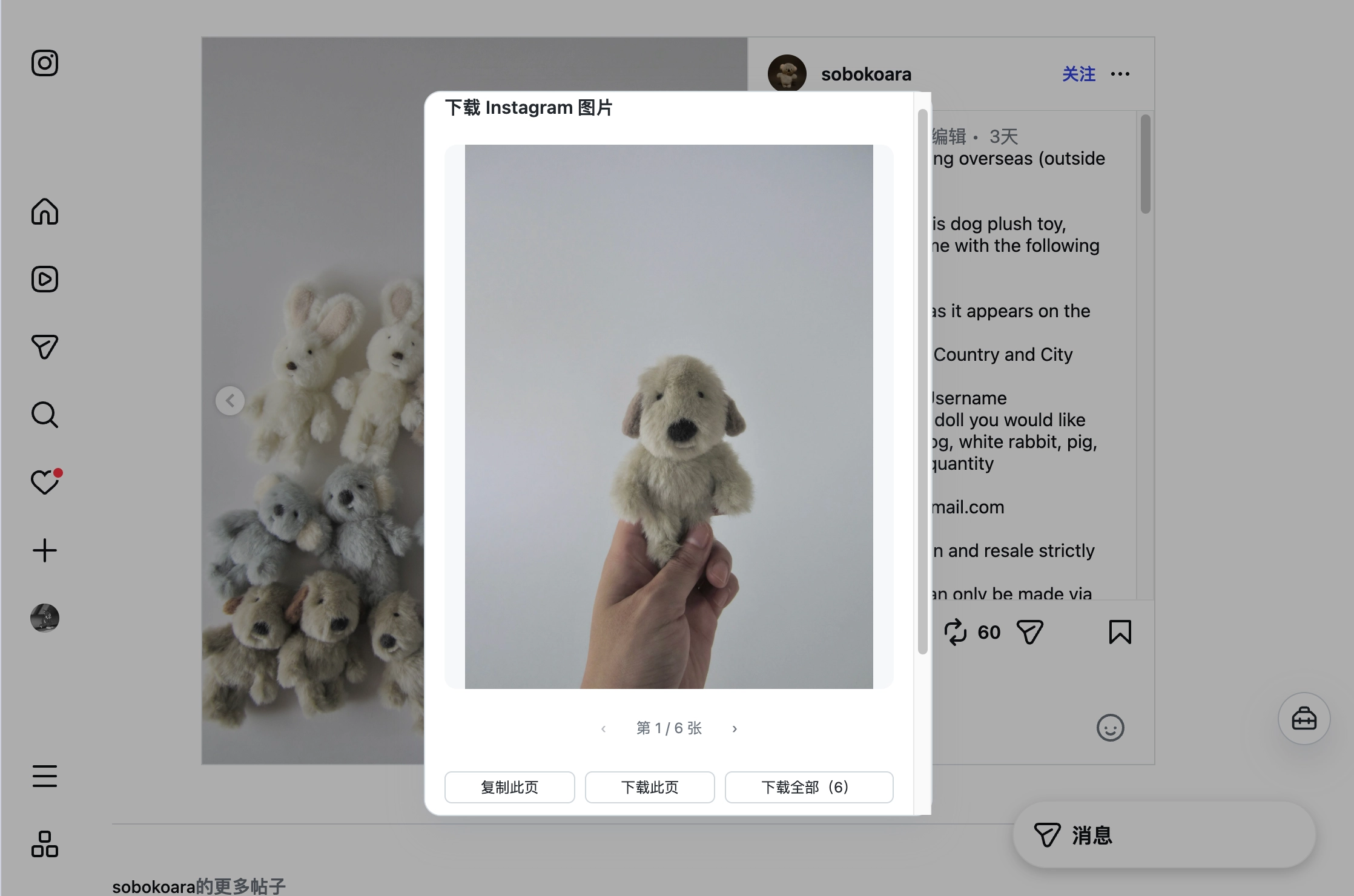
Saving one image today means opening the carousel, right-clicking, saving, renaming — and doing it ten times for ten images. Shunshou compresses that into one step: open the post, click Download Instagram images, and the whole carousel comes back at once. Preview each one, copy it, or hit Download all (N). Images are fetched in your own browser — no third-party download site, and no pasting the post link to anyone.
Whole carousel · Preview before saving · Fetched locally
Why it's a chore
The task itself is trivial. What makes it annoying is that every route leaves something behind: the wrong size, a pile of repeated clicks, or handing the link to someone else.
Save image as usually gets you a compressed, smaller version that turns to mush when enlarged. The full-size URL was already loaded by the page — it just never reaches your hands.
Open one, right-click, save, rename — then do it again. Miss one and you get to hunt for it.
Paste the post URL into a site you don't know: ads, countdown timers, and sometimes your images are uploaded to their server first before you get them back.
A share image rearranges the post into a card. Here you want the image itself — unchanged, ready to use as material, reference or archive.
Save the pictures and the source is gone: who posted it, when, and what the caption said. Finding the post again means searching from memory.
Files land as hash strings, mixed into your downloads folder, with no way to tell which post they belong to.
How it works
No connection to configure, no account, no extra Instagram login. The action follows the post page — it only shows up
on /p/… and /reel/… URLs.
Any post or Reels page on instagram.com. Whatever login state your browser is already in is what gets used — you're not asked to sign in.
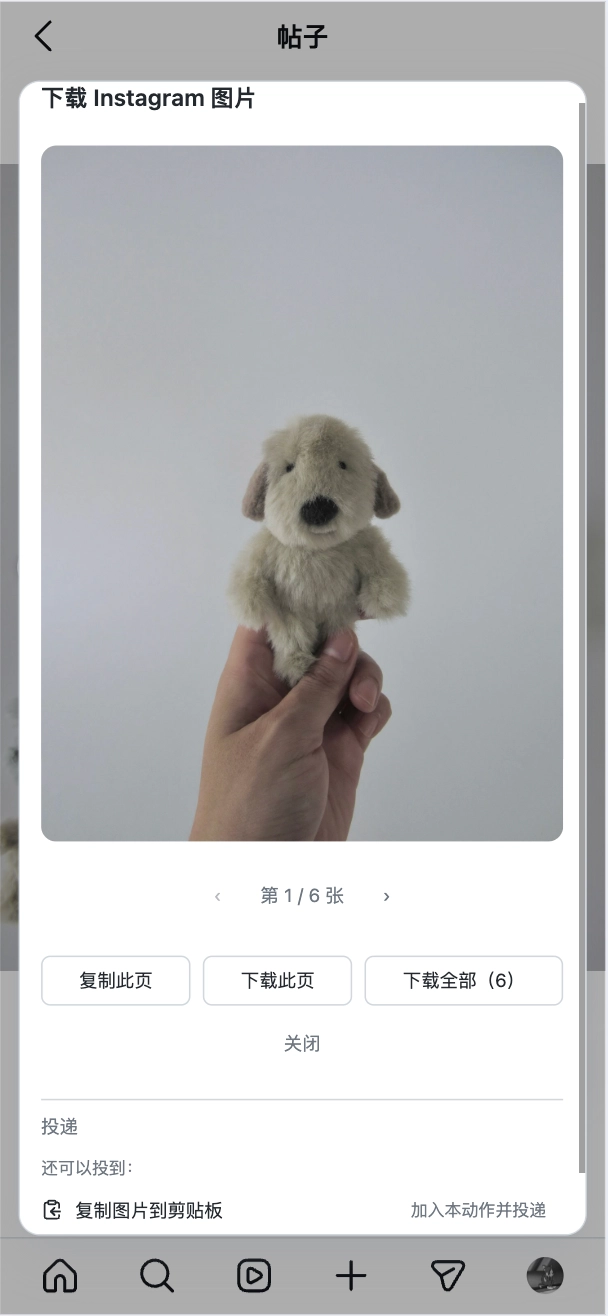
The action first pulls the post's complete image list, so a carousel gives you more than the one image you happen to be looking at.
Preview one by one: Copy this image pastes straight into a chat or document, Download this image saves one, Download all (N) saves the set. Nothing is written to disk by default.
What the action does
In one sentence: it turns "the images in this post" into a set you can preview, copy and download — and the decisions stay yours.
Carousel images are completed automatically (the page itself only mounts the current few; the action fetches the post's full list). Up to 20 images per post.
It uses the large image URL the page itself already loaded — no re-compression, no watermark, no resizing.
Fetching happens in your own browser: there is no server of ours, images are not uploaded or relayed, and no download site gets your link.
Images stay in the result dialog. Nothing is written to disk unless you click download, and nothing is filed away behind your back.
Most of the time you just want it in a chat, a doc or a note — "Copy this image" skips the whole save-then-find-the-file round trip.
The default name is username-date, not a hash — so a folder of downloads still tells you which post each image came from.
The other exit from the same post
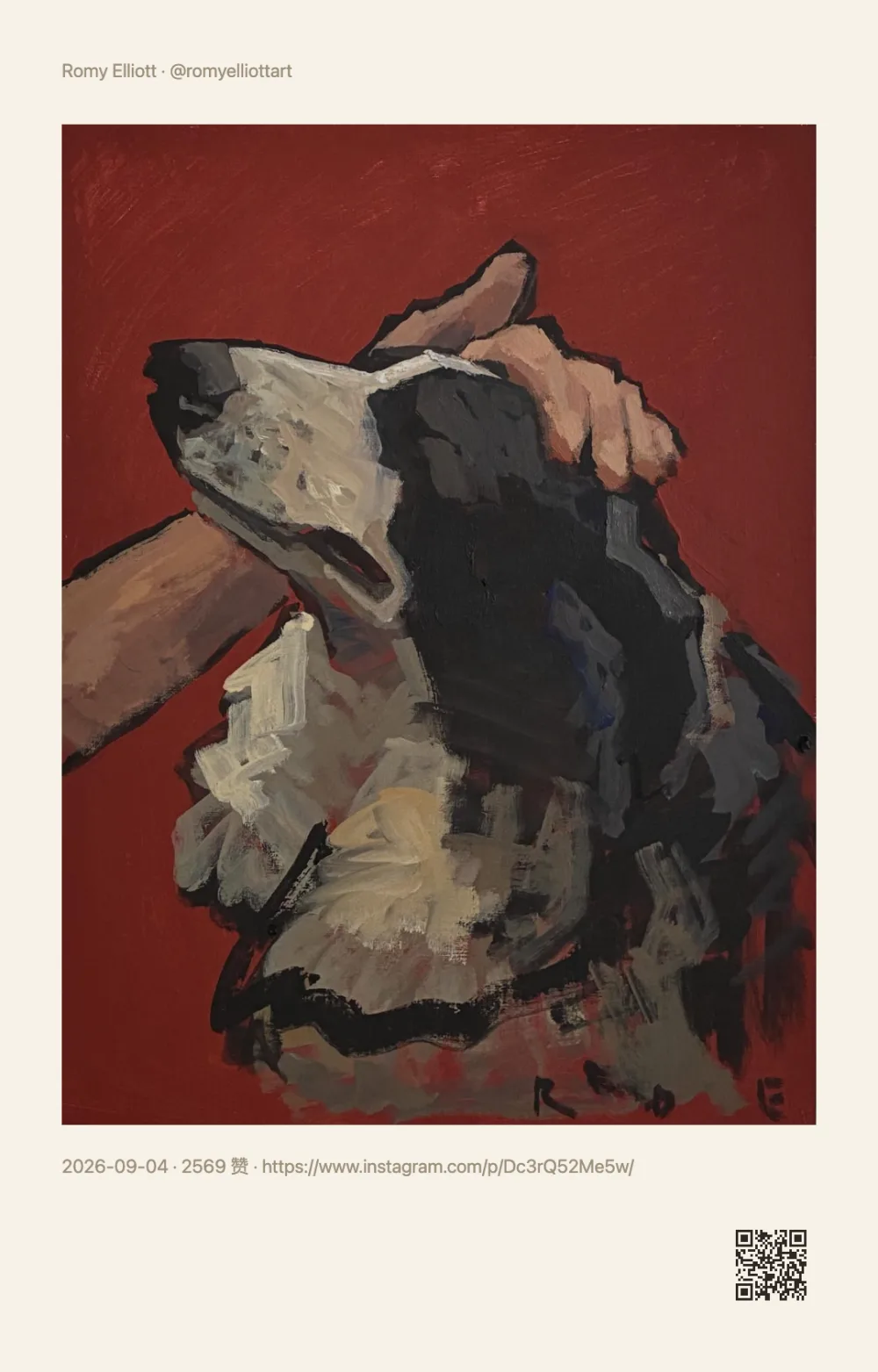
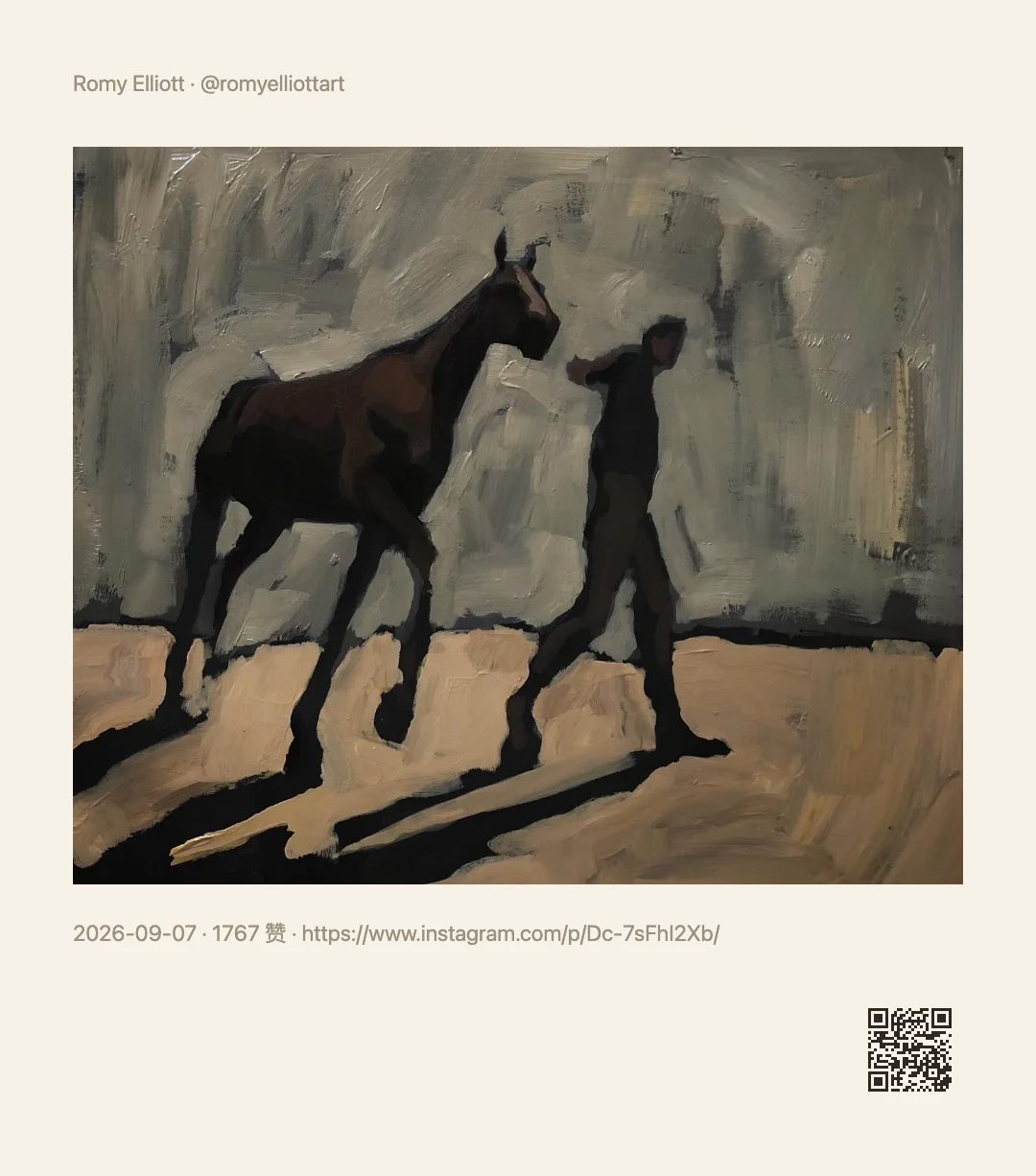
Downloading originals and making a share image are two different exits, both built on the same extracted data: one hands you the files, the other rearranges the post into a card — author, images, caption and date in place, with a QR code in the corner that leads back to the post.

FAQ
No. Shunshou has no server: images are fetched in your browser (the extension requests them from its local background script; the userscript uses its script manager's request capability). Nothing is uploaded, nothing is relayed.
The only outbound traffic is to instagram.com, to fetch this post's page and its images.
No extra login. The action reads the post's public data (the post page and the official embed page), and uses whatever state your browser is already in.
It does not bypass login walls and does not touch private accounts: if it can't get the data it says so plainly, rather than guessing or impersonating you.
For now it can only fetch a Reel's cover image; the video itself is not part of this step. That boundary is written here on purpose, so you don't install it for the wrong reason.
Up to 20 images per post; duplicate links are removed. Any single image over about 7 MB is skipped, and the result tells you how many failed.
Failures are counted separately rather than reported as success — open the run details to see which step it stopped at.
Nothing is saved by default: images stay in the result dialog until you click Download all (N), which writes them to your browser's own download folder (default filename: username-date).
If you'd rather not touch the disk at all, "Copy this image" gets the image just as well.
The extension is desktop-only; on mobile you'd install the userscript. Instagram keeps pushing you into its app on mobile browsers, though, so this action is more comfortable on a computer.
It's free, with no ads and no paid features, and no account to register. Your setup lives only in your own browser.
Install
Both store installs update themselves; the userscript suits mobile or browsers where you'd rather not add an extension.
Best on desktop, updates itself once installed.
Same engine as Chrome, same features.
Install a script manager first (Tampermonkey / Violentmonkey; Firefox on Android, Safari + Userscripts on iOS), then the script.
To load the zip yourself (or if the stores aren't an option): download shunshou-extension-*.zip from
Releases,
unzip it, then open chrome://extensions, turn on Developer mode and choose "Load unpacked".
The full walkthrough is on the home page's install section.

Install it and go — nothing to configure.
Or download the zip, or see every install option.